Editor
INFO
This page is written with AI assistance. If it disagrees with the editor, the editor is right. Please tell us.
Autocomplete, warnings and keyboard navigation in the Method Sketch editor.
Autocomplete
| Key | Action |
|---|---|
| Ctrl+Space | Open the menu |
| ↑ ↓ | Choose a suggestion |
| Tab | Accept the chosen suggestion, or the first one if none is chosen |
| Enter | Accept the chosen suggestion. With none chosen, Enter starts a new line as usual |
| Esc | Close the menu |
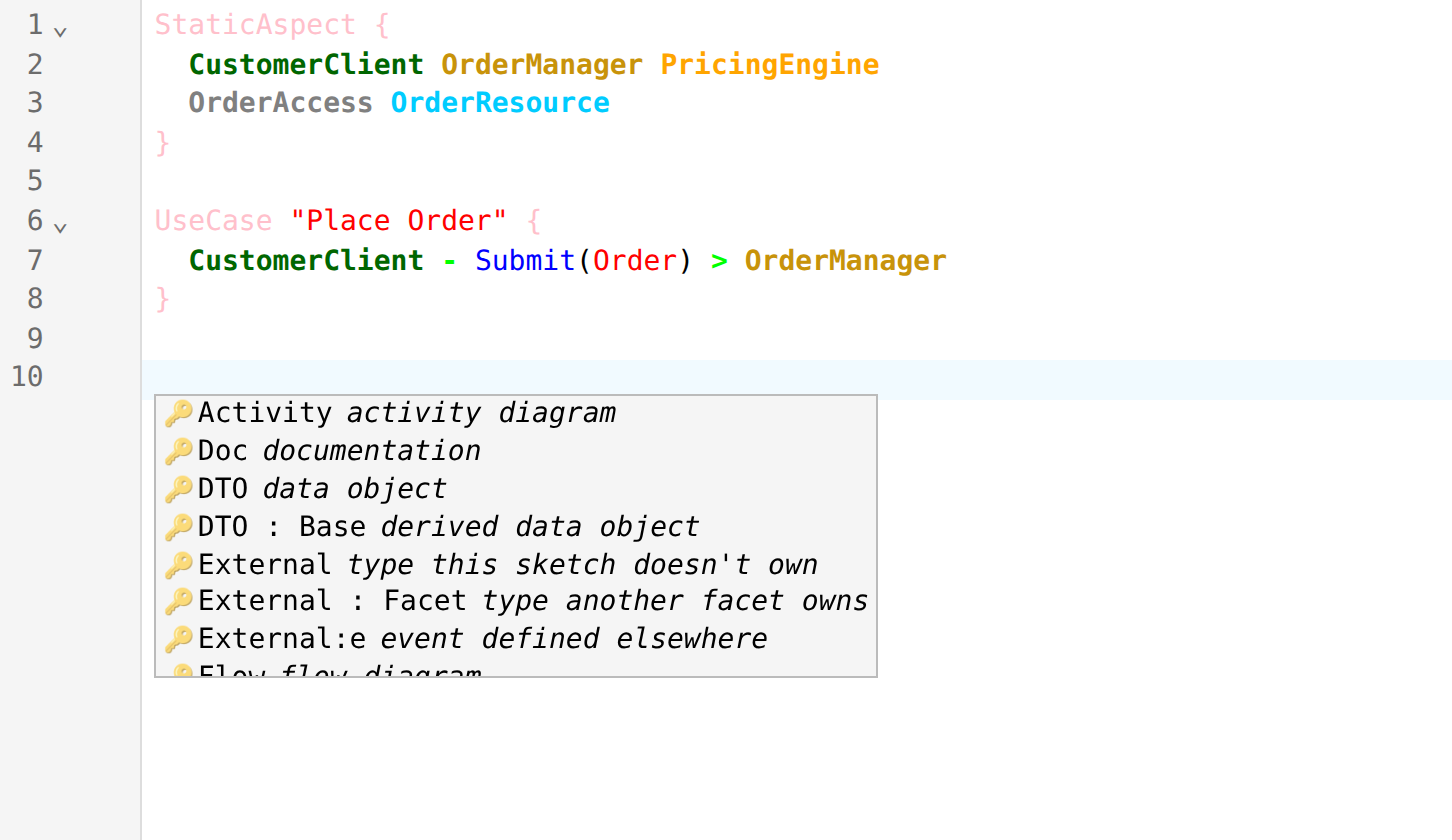
The menu opens as you type. It also opens by itself where a choice comes next:
- on a new line inside a
UseCaseorFlowbody - after each component and each arrow of a call
- in the type slot of an
IdentifierorValue - on a blank top-level line when you press Enter. Leave an empty line after the previous
}; the menu opens on the second Enter.
Moving the caret with the arrow keys or the mouse never opens it.
Suggestions you picked recently are listed first.
Snippets
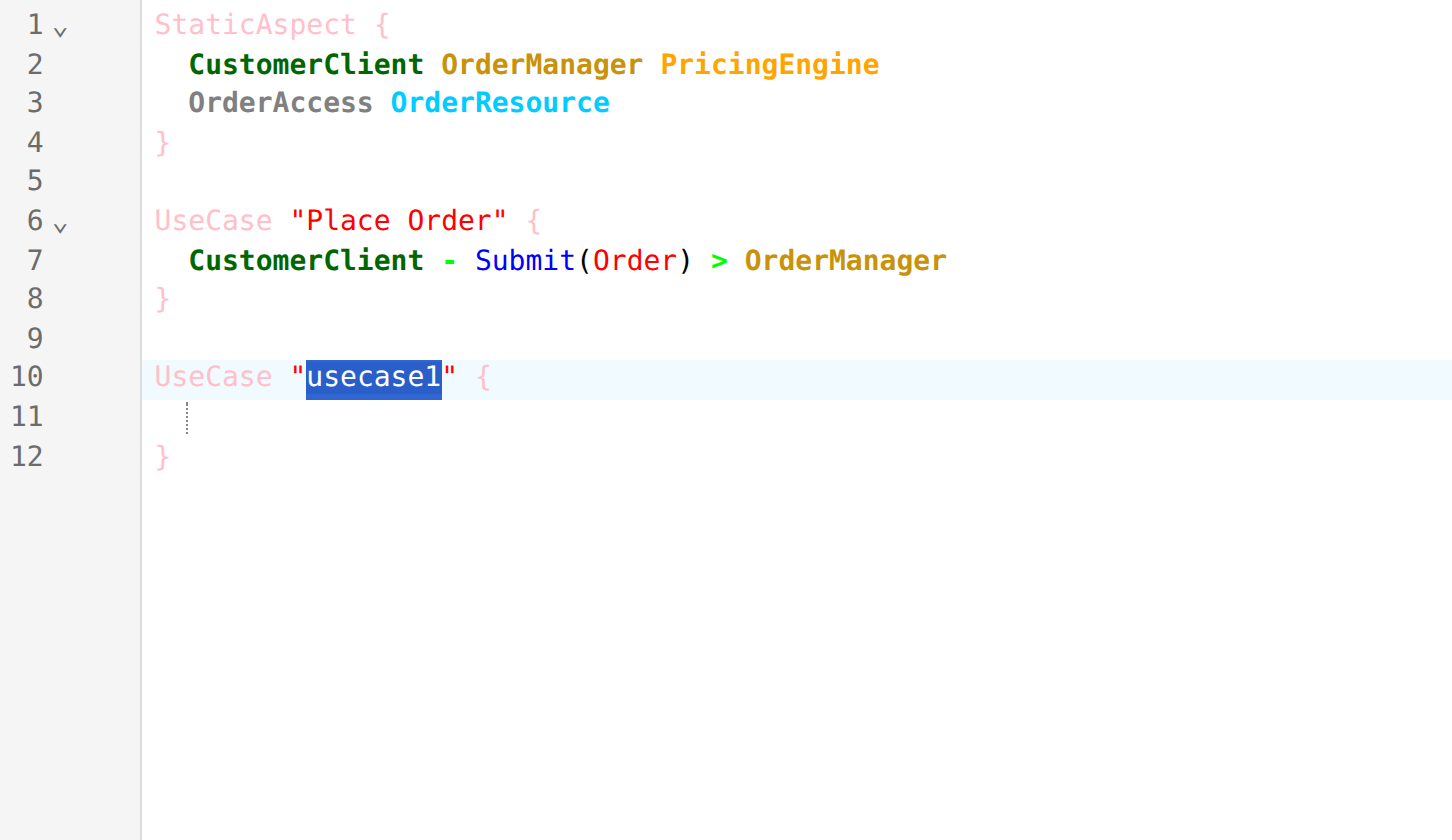
Block suggestions such as UseCase insert a template. The name is selected so you can type over it, and Tab moves to the next placeholder.
What is suggested where
Top level
On a blank line outside any block: StaticAspect, UseCase, Activity, Flow, DTO, DTO : Base, Doc, Identifier, Value, External, External : Facet, External:e and Section. Typing narrows the list, so Us leaves UseCase.
StaticAspect
Type the component's name, then pick its type from the menu. A capital letter narrows the list: OrderM offers Manager.
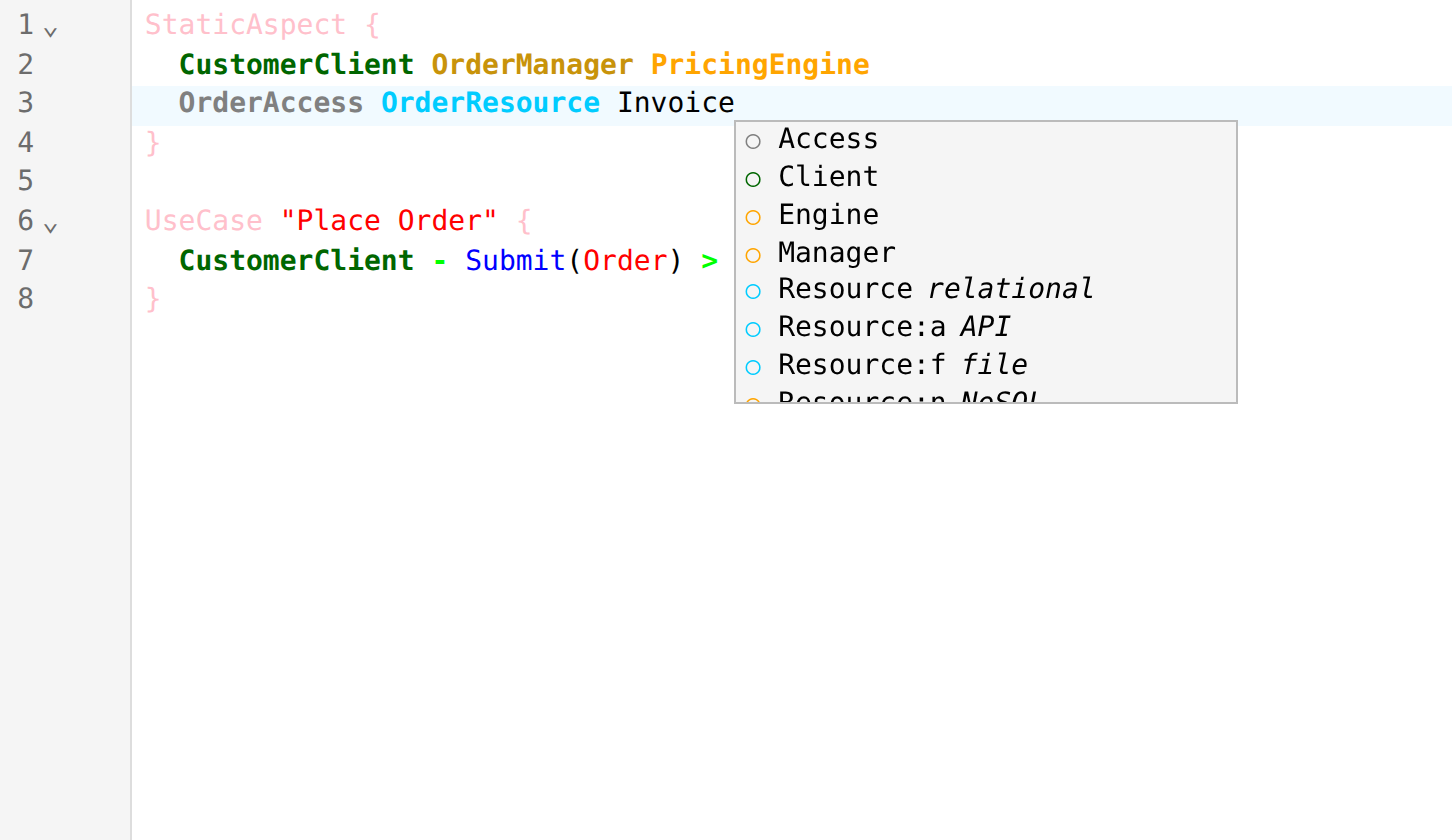
The types are Client, Manager, Engine, Access, Utility and Resource. A resource can carry a suffix:
| Suggestion | Resource |
|---|---|
Resource | relational (default) |
Resource:a | API |
Resource:f | file |
Resource:n | NoSQL |
UseCase
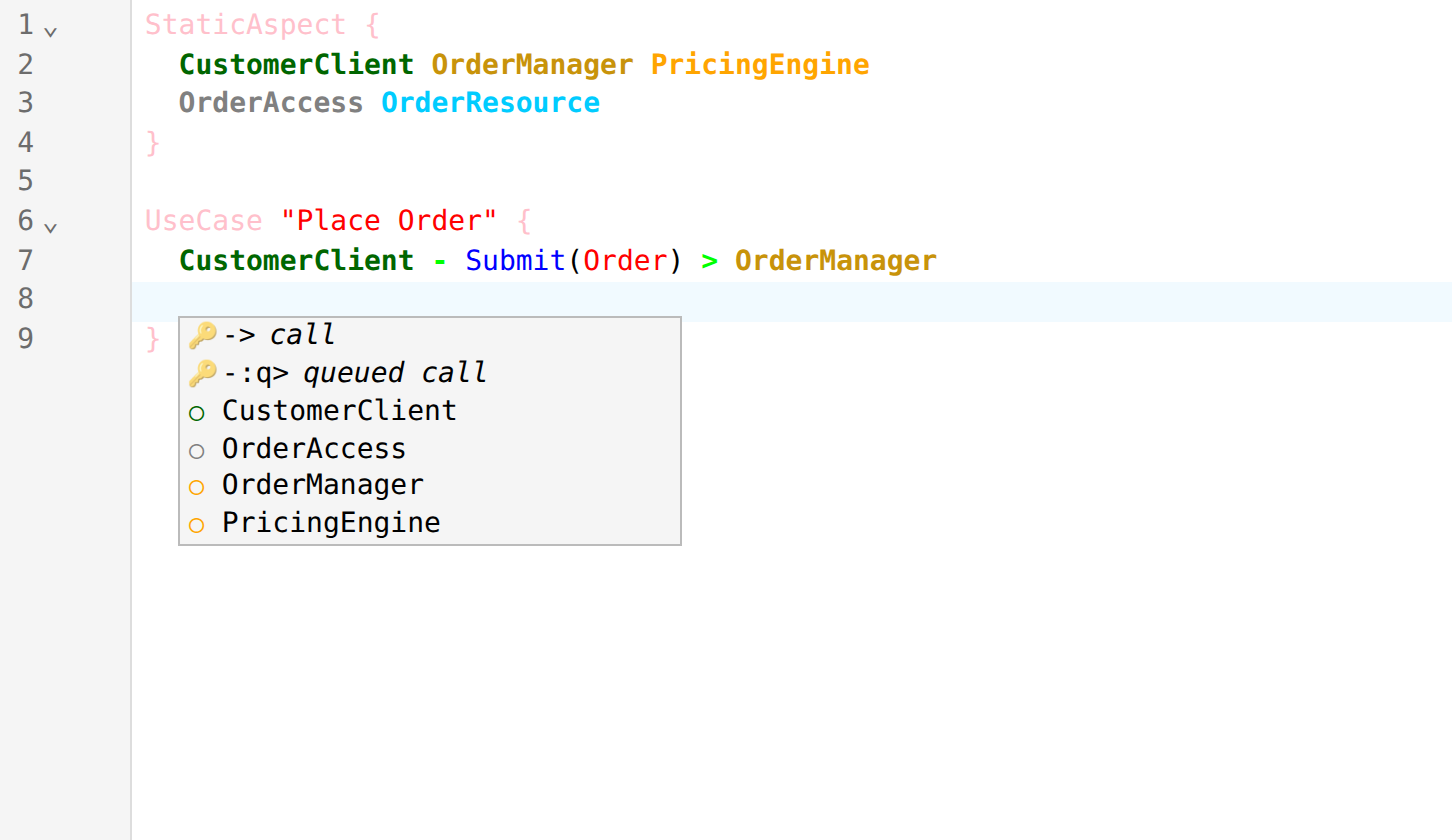
| Caret | Suggestions |
|---|---|
| Start of an empty use case | Clients and utilities. A use case starts from one of these |
| After a component | ->, then the components. After a manager, -:q> as well |
| After an arrow | The components the caller may call |
Inside an arrow, between - and > | The target's facets, and the transports :a (async) and :q (queued). If the target has no facets yet, Operation() and ITarget to start one |
| After a facet | The facet's operations, or Operation() |
A synchronous call is the default, so it has no transport suffix.
The components offered after an arrow follow the call rules:
| Caller | May call |
|---|---|
| Client | Manager, Utility |
| Manager | Engine, Access, Utility. Another Manager only through -:a> or -:q> |
| Engine | Access, Utility |
| Access | Resource |
| Utility | Manager, Engine, Access, Utility |
Identifier and Value
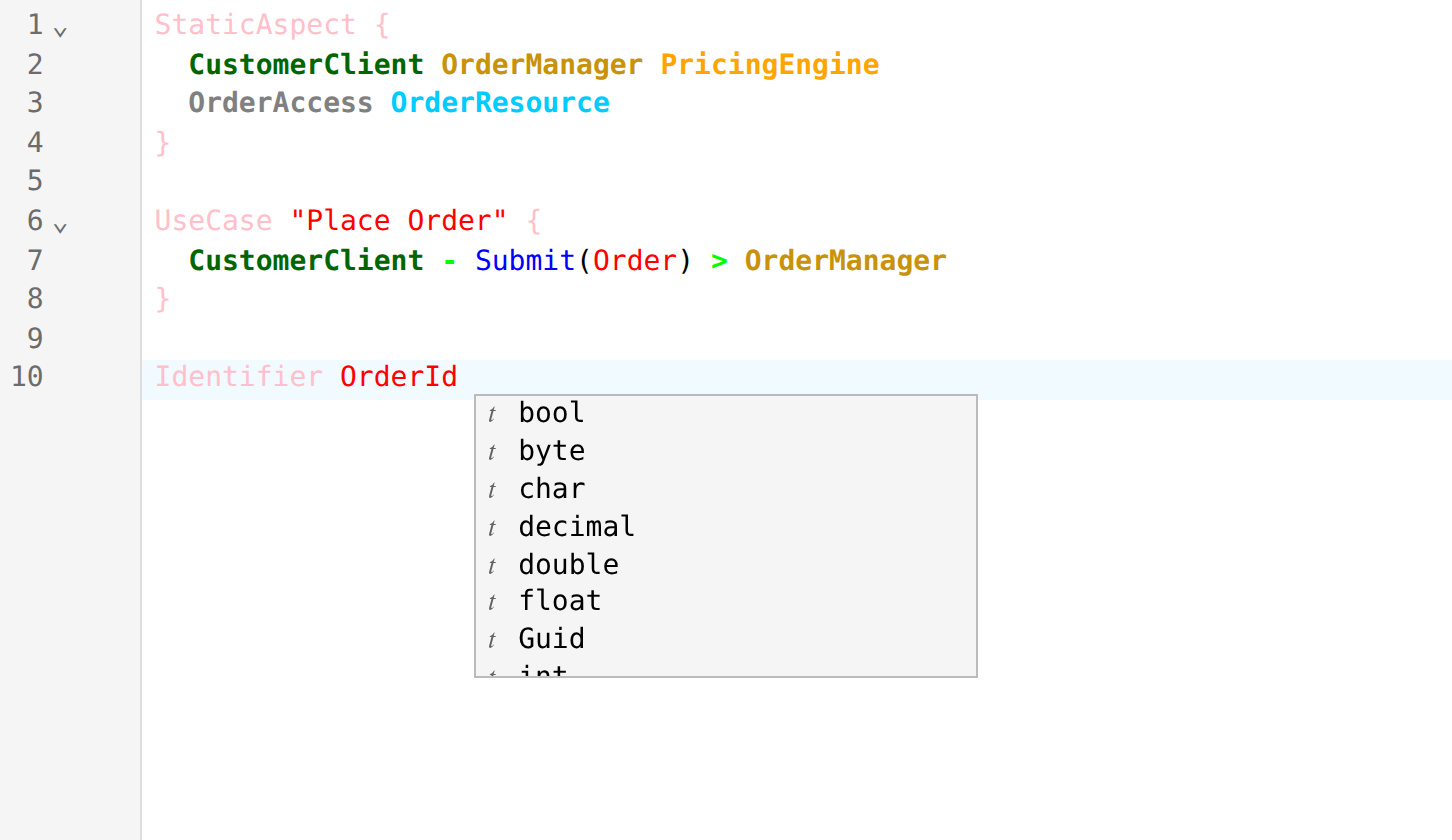
After the name, the menu offers the primitive types: bool, byte, sbyte, char, decimal, double, float, int, uint, long, ulong, short, ushort, string, Guid.
DTO
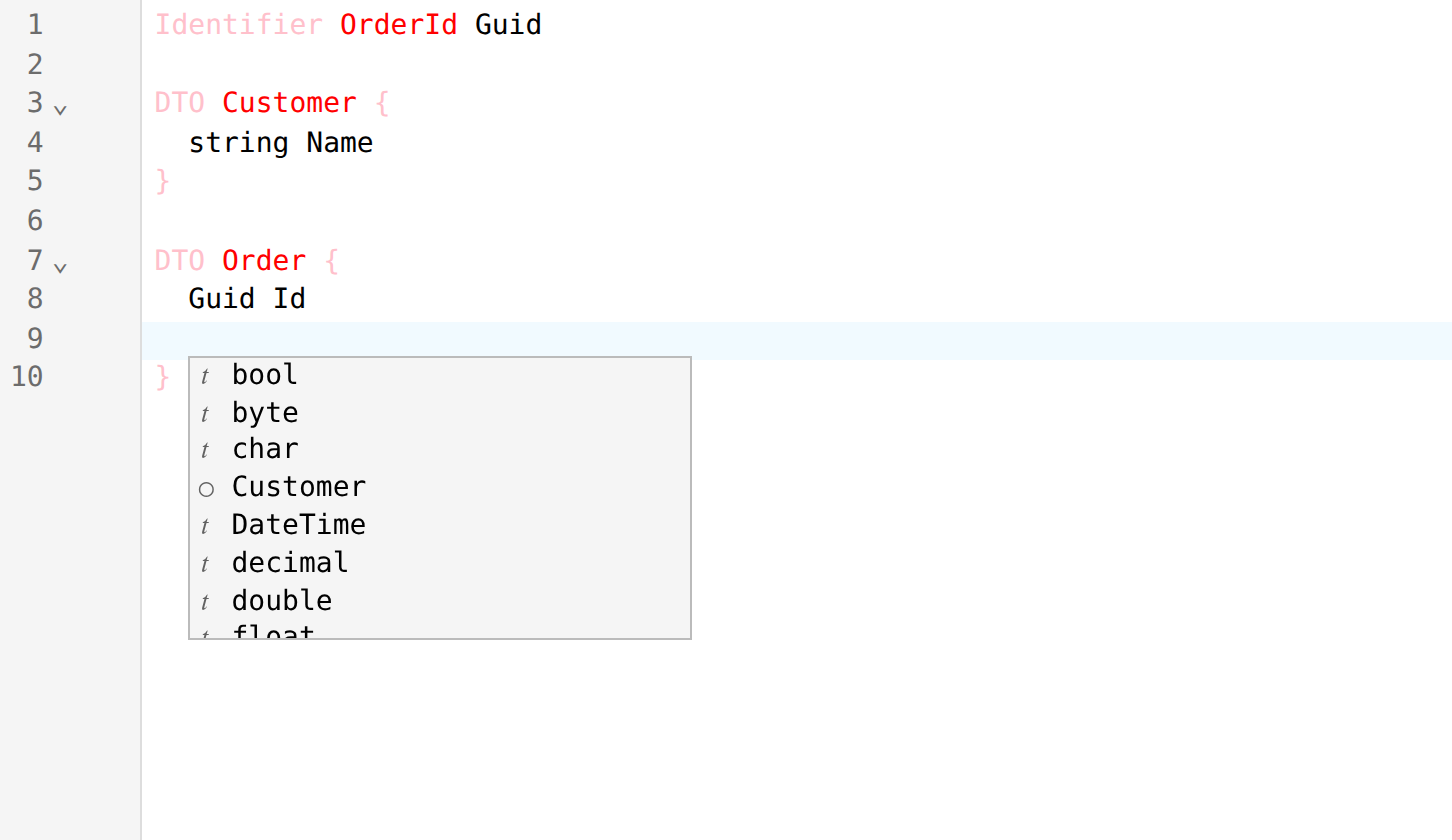
After DTO, the name slot offers the request and response types your calls use that nothing declares yet.
At the start of a property line, the menu offers the types a property can have: primitives, your Identifier, Value, DTO and External types, and Uri, DateTime, object. It stays closed while you type the property name. Add [] or <…> yourself.
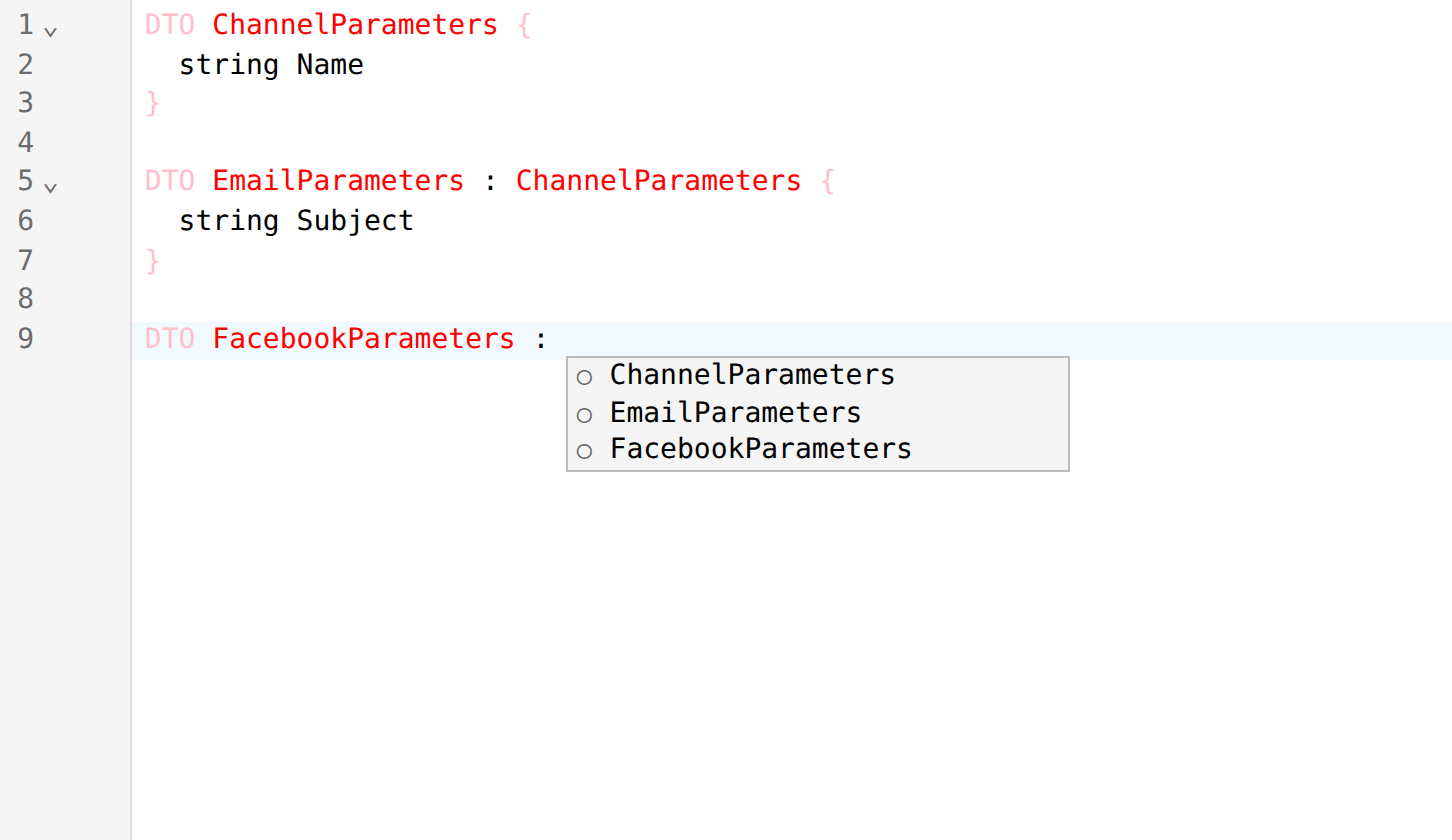
After : in the header, the menu offers the possible base types:
- declared DTOs and
Externaltypes - request and response types whose name ends in
Base - the base the backend generates when one operation is called with several DTOs:
{Operation}RequestBaseor{Operation}ResponseBase
External
Each slot of an External line offers what fits it: the sketch's facets, and type names. Types that are used but not declared come first, marked not declared. External:e offers event facets only.
Flow
On a new line in a Flow body the menu offers lanes (@participant, plus lanes used in your other flows) and steps: task, (Start), (End), send >>, receive <<, timer <T and <decision>. Until the flow has a lane, only lanes are offered.
Type a name first and the menu offers each kind of step with that name filled in. After @ it offers lane names.
Errors and warnings
Problems are underlined as you type. Hover over one to read the message. The Issues panel lists them all, and clicking one moves the editor to it.
| Message | Meaning |
|---|---|
Syntax Error (red) | The text cannot be parsed |
Component '…' has not been defined | A use case names a component that no StaticAspect declares |
A manager cannot call a resource directly | Only an access can. The call is left out of the diagram |
This call detail is ignored | An access reads or writes a resource directly, so an operation or transport on that call is dropped |
A synchronous manager-to-manager call isn't represented | Use -:a> or -:q> |
… conflicting request parameters across use cases | The same operation is written with a different number or order of parameters. Parameters are matched by position |
… mixes value and reference types | See below |
Mixed value and reference types
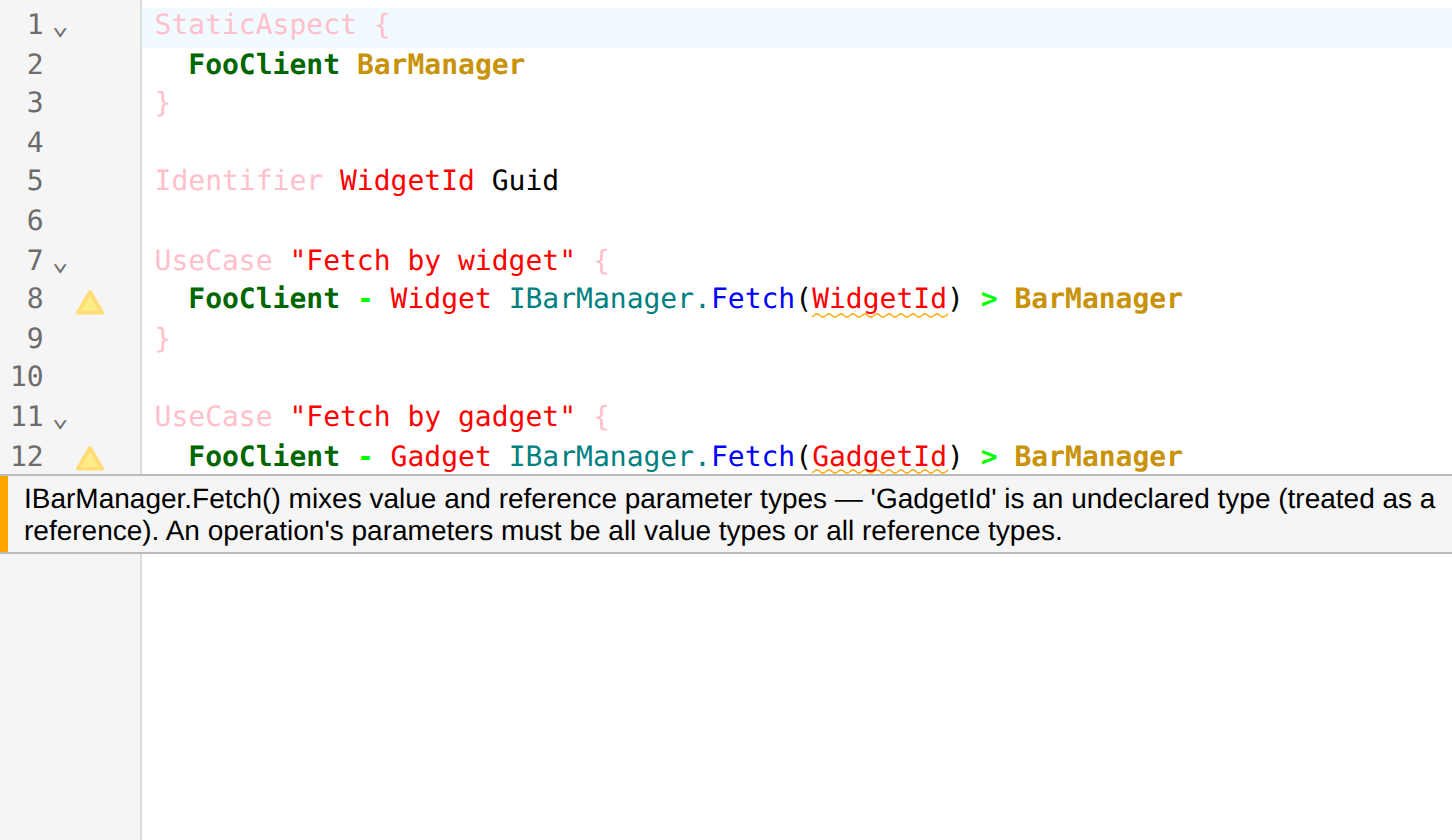
Every call to one operation must pass all value types (a primitive, Identifier or Value) or all reference types (a DTO). The same goes for its responses.
A type that nothing declares counts as a reference type, so the usual cause is a misspelt name or a missing Identifier declaration. Below, WidgetId is declared and GadgetId is not.
Strict mode
The Issues panel has a Permissive / Strict switch. Strict also warns about any DTO property, request or response type that is not defined. Permissive is the default, so an early sketch is not covered in warnings.
Navigation
All navigation keys start with Ctrl+K. On macOS Cmd works too.
Bookmarks
| Keys | Action |
|---|---|
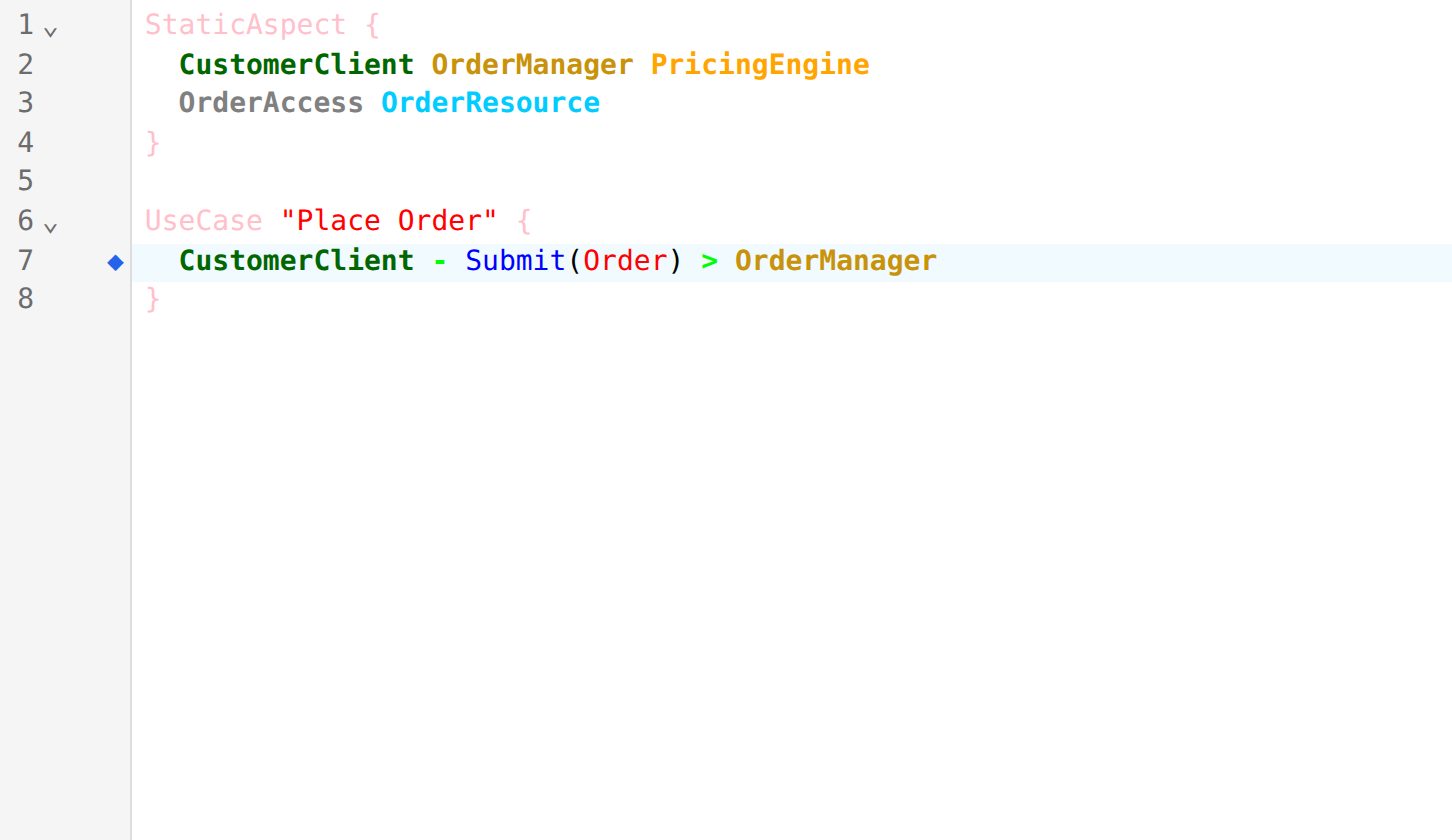
| Ctrl+K Ctrl+K | Toggle a bookmark on the current line |
| Ctrl+K Ctrl+N | Next bookmark |
| Ctrl+K Ctrl+P | Previous bookmark |
| Ctrl+K Ctrl+L | Clear all bookmarks |
Sections
The second key needs no Ctrl.
| Keys | Action |
|---|---|
| Ctrl+K ] | Next section |
| Ctrl+K [ | Previous section |
| Ctrl+K . | Next block (UseCase, DTO, …) in the current section |
| Ctrl+K , | Previous block in the current section |
Blocks outside any section count as one group, ahead of the first section.
Selecting an item in the navigation panel also moves the editor to it.